本页面由 PageTurner AI 翻译(测试版)。未经项目官方认可。 发现错误? 报告问题 →
音乐
专辑以文件夹形式组织,每个文件夹仅包含一个专辑。Jellyfin 不关心您如何组织专辑文件夹之间的关系,只要每个专辑都存放在独立文件夹中即可。由于音轨信息主要从内嵌元数据中提取,文件名通常无关紧要。若未找到其他元数据,Jellyfin 会将文件名作为音轨标题使用。
Music
├── Some Artist
│   ├── Album A
│   │   ├── Song 1.flac
│   │   ├── Song 2.flac
│   │   └── Song 3.flac
│   └── Album B
│       ├── Track 1.m4a
│       ├── Track 2.m4a
│       └── Track 3.m4a
└── Album X
    ├── Whatever You.mp3
    ├── Like To.mp3
    ├── Name Your.mp3
    └── Music Files.mp3
虽然 Jellyfin 通常不依赖文件名识别内容,但包含特殊字符的文件名仍可能导致问题。已知会引起问题的字符包括:<, >, :, ", /, \, |, ?, *
唱片
多碟片专辑通过元数据标签中的 disc number(碟片编号)和 total discs(碟片总数)字段识别。请将所有碟片的音轨放在同一文件夹中。您也可选择按碟片分文件夹存放,但内嵌元数据优先级更高。
Music
├── Album 1
│   ├── Disc 1 Track 1.ogg
│   ├── Disc 1 Track 2.ogg
│   ├── Disc 2 Track 1.ogg
│   ├── Disc 3 Track 1.ogg
│   ├── Disc 3 Track 2.ogg
│   └── Disc 3 Track 3.ogg
└── Album 2
    ├── Disc 1
    │   ├── Disc 1 Track 1.aiff
    │   └── Disc 1 Track 2.aiff
    ├── Disc 2
    │   ├── Disc 2 Track 1.aiff
    │   ├── Disc 2 Track 2.aiff
    │   └── Disc 2 Track 3.aiff
    └── Disc 3
        └── Disc 3 Track 1.aiff
歌词
歌词文件必须与对应音轨位于同一文件夹,且文件名需匹配。例如:01 Death Eternal.mp3 的歌词文件应命名为 01 Death Eternal.lrc、01 Death Eternal.elrc 或 01 Death Eternal.txt。
Music
└── Some Artist
    └── Album A
        ├── Song 1.flac
        ├── Song 1.lrc
        ├── Song 2.flac
        ├── Song 2.lrc
        ├── Song 3.flac
        └── Song 3.lrc
在 Jellyfin 界面中可实现歌词跳转功能:用户点击任意歌词行即可跳转到歌曲中对应的具体时间点。歌词文件支持同步/非同步格式,可包含额外元数据(但这些元数据不会在客户端显示)。
- 同步歌词支持交互操作,用户可点击歌词行直接跳转至歌曲对应位置。您可选择手动同步文本(耗时且精度有限),或使用 MiniLyrics 等歌词同步工具。同步歌词文件示例如下:
[ar: Some Artist]
[ti: Song 1]
[al: Album 1]
[by: Author]
[length: 2:57]
[00:10.89]Line 1
[00:14.58]Line 2
[00:16.78]Line 3
[00:21.03]Line 4
[00:24.86]Line 5
(...)
- 非同步歌词实现更简单,但用户跟唱体验较差。此类文件示例如下:
Line 1
Line 2
Line 3
Line 4
Line 5
(...)
本页面由 PageTurner AI 翻译(测试版)。未经项目官方认可。 发现错误? 报告问题 →
元数据图片
图片可以作为外部文件放置在媒体文件夹中,也可以直接嵌入在媒体文件内部。当使用外部图片时,应将其与媒体文件放置在同一目录下。一旦提供了外部图片,它们将优先于其他来源的图片。
与媒体文件夹类似,艺术家图片可以放置在艺术家文件夹的根目录下。该图片将在浏览艺术家列表和艺术家详情页面中同时显示。
- Music
- Movies
- Shows
Artist
├── Album
│   ├── cover.jpg
│   ├── backdrop.webp
│   ├── logo.png
│   ├── Track 1.m4a
│   └── Track 2.m4a
└── folder.jpg
When no images are provided for music, Jellyfin will take the cover image from the first track that has an embedded cover image.
Movie (2035)
├── cover.jpg
├── backdrop.webp
├── logo.png
└── Movie (2035).mp4
Series Name B (2018)
├── cover.jpg
├── thumbnail.jpg
└── Season 01
    ├── backdrop.webp
    ├── cover.jpg
    ├── logo.png
    ├── Series Name B S01E01.mkv
    ├── Series Name B S01E01-thumb.jpg
    ├── Series Name B S01E02.mkv
    └── Series Name B S01E02-thumb.jpg
图片类型:
| Type | Description |
|---|---|
| Primary | The primary cover/artist image |
| Backdrop | Background image in media page 1 |
| Banner | Displayed when browsing library in banner mode. Video only. 2 |
| Logo | Logo displayed on the top of a media item. |
| Thumb | Thumbnail for homepage and for browsing library in thumb mode. Video only. 2 |
1Multiple backdrop images can be used to cycle through several over time. Simply append a number to the end of the filename directly after or after a hyphen, e.g. backdrop-1.jpg, backdrop2.jpg.
2These can be added to both video and audio content, but are not used by any client for audio content.
Filenames, their respective types and supported media types
Unless otherwise noted, all filenames can be used either standalone (e.g. logo.png) or as a suffix (e.g. movie-logo.png)
| Filename | Type | Movies | Series | Season | Episode | Music | Artist |
|---|---|---|---|---|---|---|---|
| poster | Primary | ✅ 2 | ✅ | ✅ | ✅ | ||
| folder | Primary | ✅ 2 | ✅ | ✅ | ✅ | ✅ | |
| cover | Primary | ✅ 2 | ✅ | ✅ | ✅ | ||
| default | Primary | ✅ 2 | ✅ | ✅ | ✅ | ||
| movie | Primary | ✅ 2 | |||||
| show | Primary | ✅ | |||||
| jacket | Primary | ✅ | |||||
| thumb (suffix) 1 | Primary | ✅ | |||||
| backdrop | Backdrop | ✅ 2 | ✅ | ✅ | ✅ | ||
| fanart | Backdrop | ✅ 2 | ✅ | ✅ | ✅ | ||
| background | Backdrop | ✅ 2 | ✅ | ✅ | ✅ | ||
| art | Backdrop | ✅ 2 | ✅ | ✅ | ✅ | ||
| extrafanart (folder) | Backdrop | ✅ 2 | ✅ | ✅ | ✅ | ||
| banner | Banner | ✅ | ✅ | ✅ | ✅ | ||
| logo | Logo | ✅ 2 | ✅ | ✅ | ✅ | ||
| clearlogo | Logo | ✅ 2 | ✅ | ✅ | ✅ | ||
| landscape | Thumb | ✅ | ✅ | ✅ | ✅ | ||
| thumb | Thumb | ✅ | ✅ | ✅ | ✅ |
1 For example: S01E01 Some Episode-thumb.jpg
2 These file names can also be embedded in supported media containers (e.g. mkv) and will be used when the Embedded Image Extractor source is enabled for movies.
下方截图展示了 Jellyfin 中的三种主要图片类型
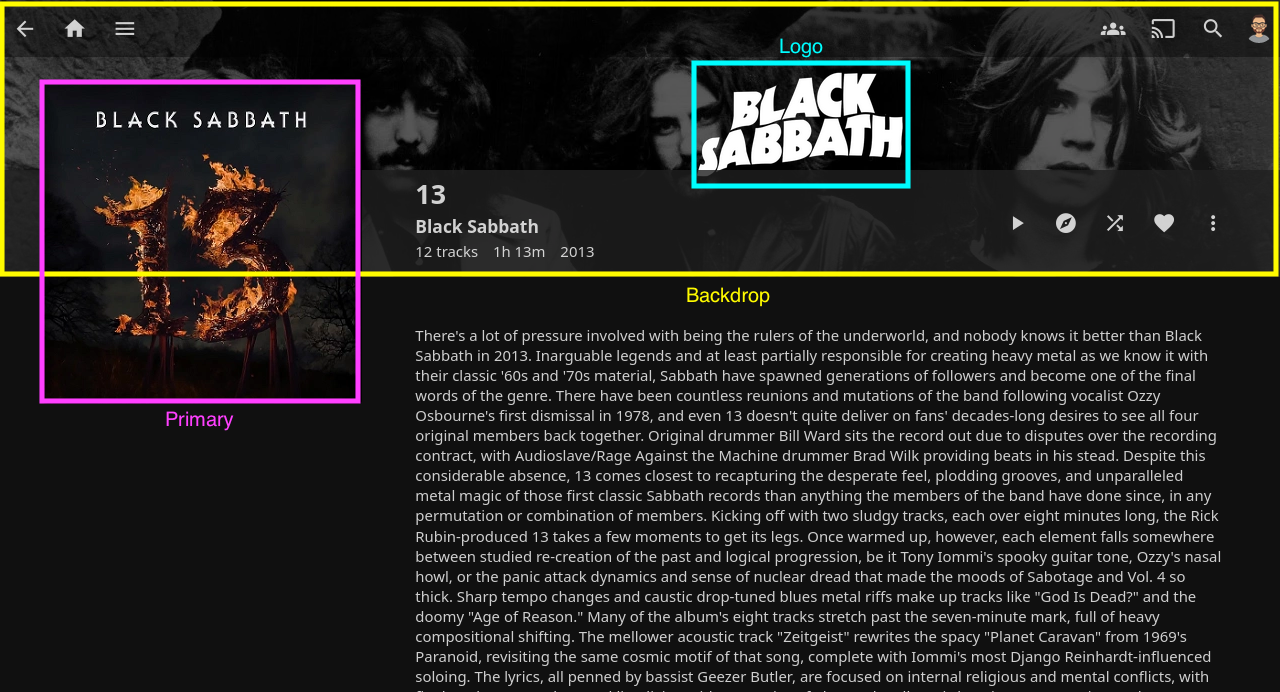
Unused types are listed below. While they are unused by official clients, they may be used by 3rd party clients.
| Type | Description |
|---|---|
| Art | Unused |
| Disc | Unused |
| Box | Unused |
| Menu | Unused |
| Chapter | Unused |
| BoxRear | Unused |
| Profile | Unused |
| Screenshot | Unused, Deprecated |
| Filename | Type | Movies | Series | Season | Episode | Music |
|---|---|---|---|---|---|---|
| disc | Disc | ✅ | ✅ | |||
| cdart | Disc | ✅ | ✅ | |||
| discart | Disc | ✅ | ||||
| clearart | Art | ✅ | ✅ | ✅ | ✅ |
文件扩展名/容器
Jellyfin 支持多数常见音乐格式,但存在以下例外:
-
纯音频 MP4:
.mp4文件不会被识别为音乐。请重命名为.m4a -
纯音频 MKV/WebM:
.mkv和.webm文件不会被识别为音乐。请重命名为.mka -
WebA:不支持
.weba文件。请重命名为.mka -
嵌有 WebP 图像或 ID3 标签的
.flac文件在 Chromium 系浏览器(Chrome、Edge、Opera、Brave 等)或 Firefox 中可能无法播放。遇到此问题时,请在客户端设置中启用Always remux FLAC audio files -
含 ID3v1 标签的文件大多数字段有 30 字节长度限制,超长内容将被截断。请升级至 ID3v2.4
可使用 ffmpeg 将问题文件重新封装为 .mka 容器:
ffmpeg -i <Input File> -c:a copy <Output File>.mka
请注意:此操作可能导致元数据混乱且图像无法保留,需手动或借助其他工具恢复元数据。
::>